

Connect Your Socials to TrekGuider and See What Sells
TrekGuider @trekguider
One sign-in shows the account is yours, helps you claim your creator page and puts your stats right next to your sales.
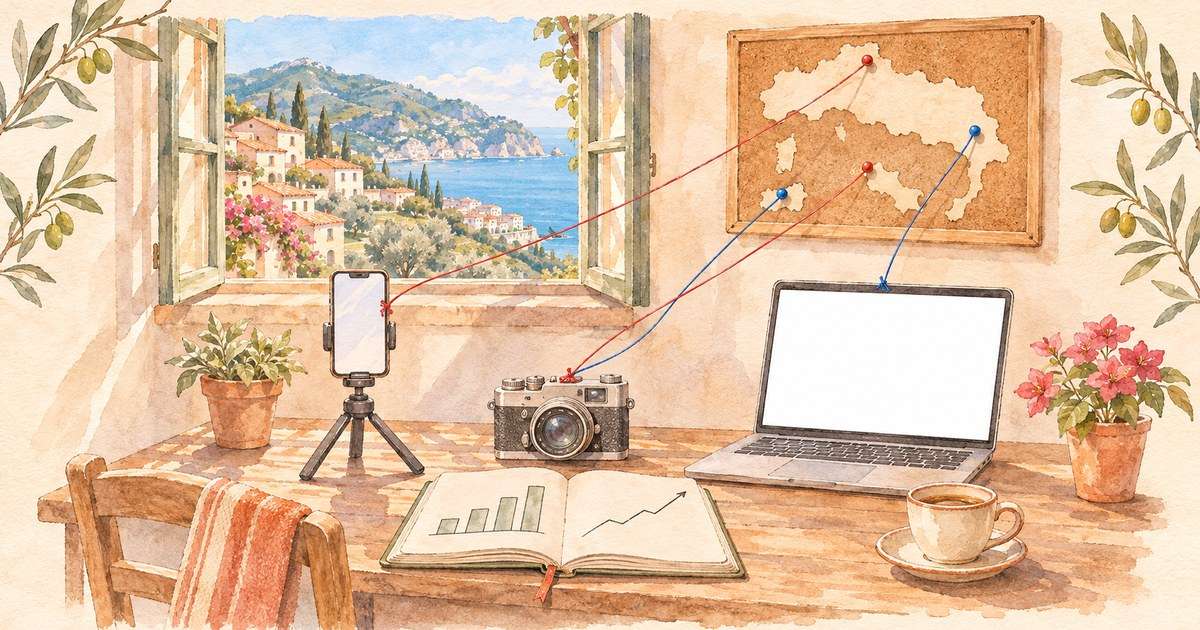
You film on YouTube, post on TikTok, pin on Pinterest and share news on Bluesky or your Facebook Page. Your guides sell on TrekGuider. Until now, those two parts of your work lived in different tabs. Now you can connect your accounts to TrekGuider with the same sign-in you already use and keep everything in one place.
One connection does three jobs at once:
- It shows the account is yours. No other TrekGuider account can use your channel or profile link.
- It helps you claim your creator page. If we already made a page for your channel, it becomes yours right away.
- It brings your stats into Marketing. Your views, followers and posts sit right next to your TrekGuider sales.
Which accounts you can connect
- YouTube, for your channel
- TikTok
- Bluesky
- Facebook, for a Page you manage
You can also add your own website or blog, and confirm a Discord server with a short code. Instagram and LinkedIn are ready on our side and waiting for approval from Meta and LinkedIn. We will turn them on for everyone once they approve.
Connect with the sign-in you already use
- Open Sales Analytics and go to the Marketing tab.
- Choose Connect, then Social accounts.
- Find your network, read the short note about access and choose Connect.
- The network's own sign-in page opens. Sign in with the account you want and approve access.
- You come back to TrekGuider with the account connected.
Access is read-only. TrekGuider can read your account details and statistics, but it can't post, comment or change anything. You don't need a developer account or any special keys, just your usual login.
A few networks ask for one extra choice:
- YouTube: if you run several channels, pick the right one in the Google window.
- TikTok: allow access to your profile info, so TikTok shares your username with us.
- Facebook: choose your Page when Facebook asks which Pages to share. You need full control of the Page. If your business portfolio owns the Page, sharing it with TrekGuider is enough.
- Bluesky: type your handle if asked, for example yourname.bsky.social.
Sign-in didn't work? Use a short code
Sometimes a sign-in just doesn't go through. Maybe you're on a borrowed laptop, or a teammate manages the account. For YouTube, TikTok, Pinterest, Bluesky and Discord there is a second way: a short code in your profile description.
If a sign-in fails, a Use a code instead button shows up right under the link. You can also pick the code from the start if you'd rather not sign in.
- Choose Copy code.
- Paste it on its own line and keep the rest of your text:
- YouTube: your channel description in YouTube Studio
- TikTok: your bio
- Pinterest: the About section of your profile
- Bluesky: your profile description
- Discord: your server description
- Save the change, come back to TrekGuider and choose Check now.
We read your public profile and confirm the account in a few seconds. Once the link shows as confirmed, you can delete the code from your description.
Facebook, Instagram and LinkedIn don't show profile descriptions to anyone who isn't signed in, so for those, signing in is the way to go.
Show that your account is really yours
You can confirm an account in three places:
- When you sign up to sell. In the Social profiles step of seller verification, use Connect and confirm instantly, or the confirm option under a link you pasted.
- On your profile. Choose Edit Social Links on your creator page. A network with an empty field shows Connect, and a network with a link shows Confirm.
- In Marketing. Connecting an account there confirms it too.
Confirm your TrekGuider email address first, and the options will appear. If the field for that network was empty, we fill in your account's link for you.
Your confirmation is private. There is no badge, and visitors can't see which links you've confirmed. What it does is protect you: once your channel is confirmed, no other TrekGuider account can use that link. If someone else had added your link without confirming it, the link moves to you and they get a short email that doesn't mention your name.
Claim your creator page in a minute
Our creators directory already has almost 1,700 pages for travel bloggers and video creators. If one of them is about you, open it and choose Claim this page. Sign in with the YouTube channel, TikTok, Pinterest, Bluesky or Facebook Page listed on it. When it matches, the page is yours right away, with no waiting for review.
The page's name, About text, photo and links fill in the matching empty fields of your profile, and the people who already followed the page now follow you. Anything you set up yourself stays as it is. You can also claim the page with a code, or with your website if the page lists it. Read more about claiming your page.
Add your website or blog
Your own site counts too. To confirm it, you add a small piece of code to your home page. Visitors never see it, and your page looks exactly the same.
- Meta tag only confirms the site. You can remove it once the site shows as confirmed.
- TrekGuider tracker confirms the site and also shows its statistics in Marketing: page views and clicks to your TrekGuider products. Keep it on your site to keep counting.
Most website builders and blog platforms have a setting for code that goes into the page header. It's often called header code or custom code. Paste the code there, publish the change, then choose Check now on TrekGuider. The check usually takes less than a minute. You don't need to change any domain settings or upload files.
Already use Google Analytics? Connect it in Marketing to see sessions, visitors, top pages, traffic sources, countries, devices and clicks to TrekGuider for the last 7, 28 or 90 days.
Everything in one place: your Marketing tab
Marketing now has five sections:
- Overview shows the whole picture on one screen: visits and sales from your tracking links, views and sales in your TrekGuider shop, your website, and one key number for each social account.
- Links is where you create tracking links and see which ones bring buyers.
- Social has a card for every connected account, with charts where the network provides them.
- Website shows your tracker or Google Analytics reports.
- Posts lists your latest videos and posts with their numbers, and a Create tracking link button next to each one.
And this is what each network brings in:
- YouTube: views, watch time, average view duration, likes, comments, shares and subscribers gained or lost, with a daily views chart and your latest videos.
- TikTok: followers, likes and video count, plus views, likes, comments and shares for your recent videos.
- Pinterest: impressions, saves, Pin clicks and outbound clicks for your business account, for any dates in the last 90 days.
- Bluesky: followers, posts, a follower chart and reactions to your recent posts.
- Facebook: Page views, daily reach, followers and Page likes, plus your recent posts.
The page opens on the last 30 days, and you can pick other dates. Until you connect a source, its block shows a sample marked Example, so you can see what you'll get.
Your numbers stay fresh on their own
You don't need to press anything. Connected accounts update by themselves twice a day. If you open Marketing and an account's numbers are more than three hours old, it updates shortly after. Pinterest works a little differently: choose Read live statistics on its card whenever you want a fresh report.
Link a post to a sale
Social stats tell you how a post did on the network. To see whether it sold anything, give it its own tracking link. In Posts, choose Create tracking link next to the video or post, paste the link into its description, and Marketing will show the visits, orders and sales that link brings.
We show your social numbers and your sales side by side, and we don't match social viewers with individual buyers. That's why a separate tracking link for each post is the best way to see which one really sells. A video with lots of likes isn't always the one that sells the most guides.
Let your AI assistant help
If you've connected an AI assistant to your TrekGuider account, it can prepare a confirmation for you. For a sign-in, it gives you a link that works for 15 minutes, and you finish signing in yourself. For a code, it tells you what to add and where. With your permission, it can also read your Marketing reports and compare your tracking links.
Coming soon: Instagram and LinkedIn
Instagram and LinkedIn are built and tested on our side. We're waiting for Meta and LinkedIn to finish reviewing them. Once they approve, you'll find both in the same Connect window, with the same easy sign-in.
Get started today
- Open Sales Analytics, go to Marketing and connect your main channel.
- Open Posts and create tracking links for your three latest videos or posts.
- Come back in a week and see which one brought buyers.
New to selling on TrekGuider? Start seller verification and connect your accounts right in the first step. For every detail, see Connect social accounts for your analytics, Confirm that a social account is yours and Confirm that a website is yours.



Comments 0
No comments yet
Be the first to share your experience!
You May Also Like

Sell on TrekGuider Through Your Company


What's New on TrekGuider Since Launch

Join the TrekGuider Creator Community on Discord

Your TrekGuider Creator Page May Already Be Waiting

Run Your TrekGuider Shop With Your Own AI Assistant
